How to repair dead-lettered messages in Azure Service Bus
A guide for Dispatched 0.1.0 · Updated 24 October 2026
Short answer: open the queue or subscription's dead-letter queue, group the messages by their dead-letter reason, fix the cause, then resubmit the messages you chose back to the entity (with edits if needed) and remove the originals. Dispatched does this in the app and with the dispatched CLI, and peeking at a dead-letter queue never changes it.
Why messages are dead-lettered
Every queue and subscription has a dead-letter queue. Service Bus moves a message there, with a reason and a description, when:
- MaxDeliveryCountExceeded: receivers locked the message and gave it back (abandoned it, or let the lock expire) more times than the entity's max delivery count.
- TTLExpiredException: the message's time to live ran out and the entity dead-letters expired messages.
- A reason set by your own code: a receiver dead-lettered the message itself, often after a validation failure, with a reason such as
SchemaValidationFailed. - On subscriptions, a rule filter or action that failed, when the subscription dead-letters filter errors.
The reason tells you what to fix first. Resubmitting before the cause is fixed only sends the messages back to the dead-letter queue.
1. See the reasons
In Dispatched, open the entity and its Dead-letter tab, then choose Reasons. The messages are grouped by reason and description with a count for each, so dozens of failures become a few problems.
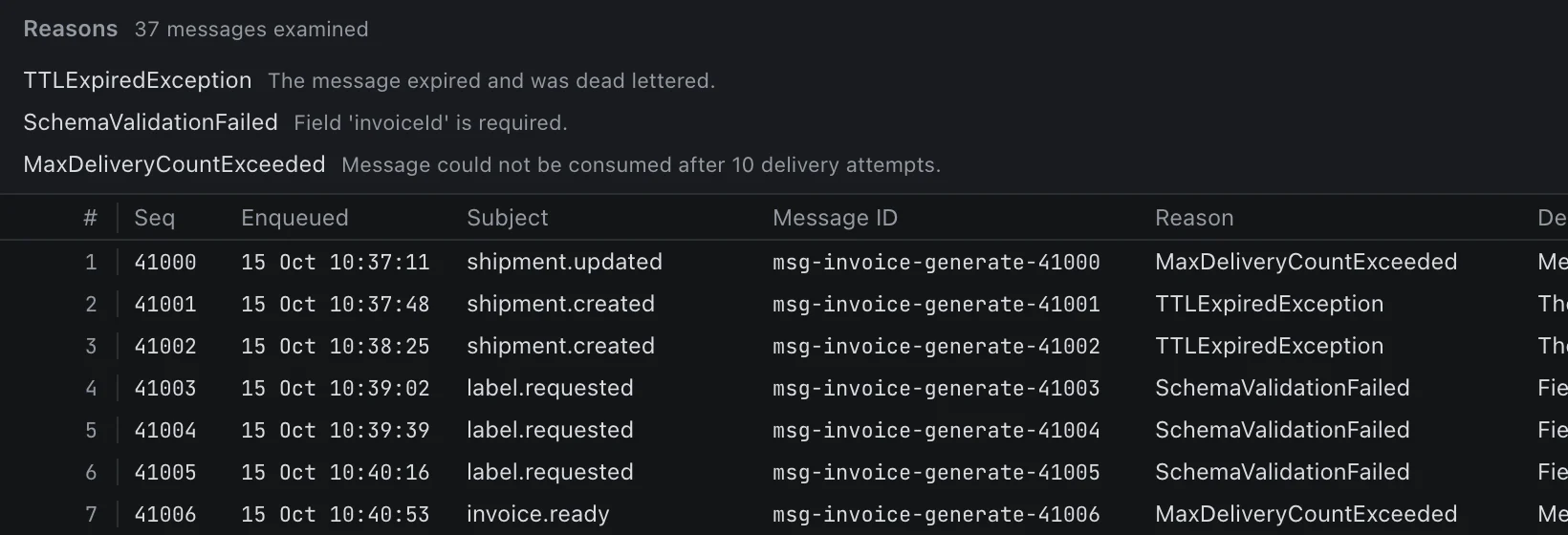
From the terminal:
dispatched dlq summary invoice-generate2. Pick exactly the messages to repair
Filter the view by property (for example user.kind = 'invoice'), by body text, by regular expression or by a JSONPath value, and open any message to read its body as JSON, XML, text or hex. Select the rows you want; nothing else is touched.
3. Resubmit, move or delete
Resubmit sends a copy of each selected message back to the entity, or to another queue or topic. You can edit the body, subject or properties first, give each copy a new message ID, and remove the originals once their copies are sent. Move sends them elsewhere and removes them; Delete removes them.
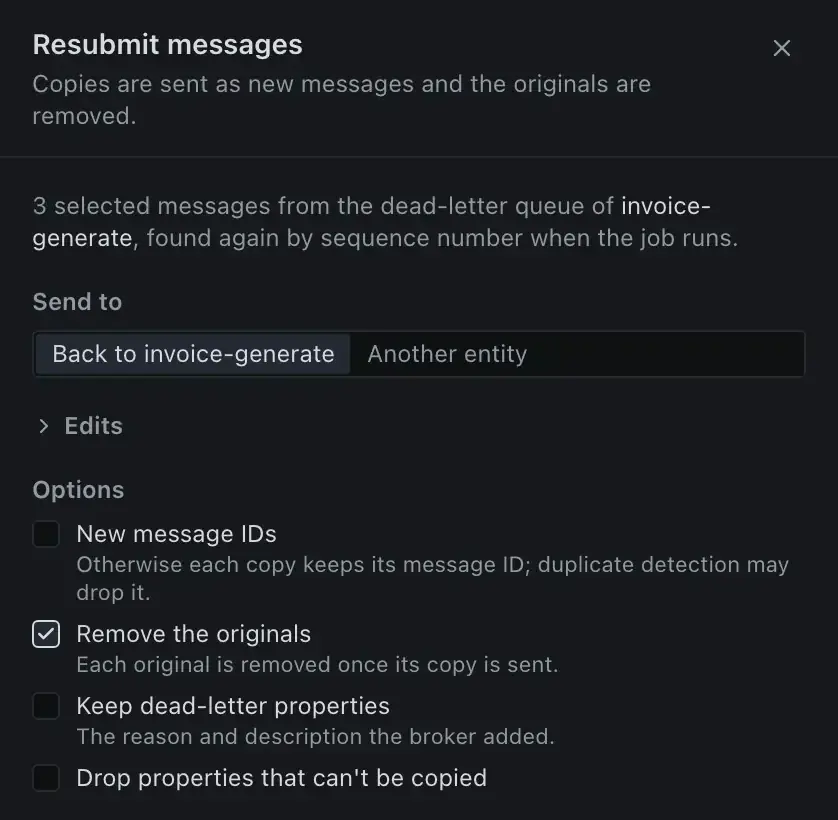
Each message is found again by its sequence number when the job runs, and the report lists what happened to every one. On a connection marked as production, you type the entity's name before anything changes.
The same from the terminal, for the messages that match a filter:
dispatched dlq resubmit invoice-generate --all \
  --filter "user.kind = 'invoice'" \
  --remove-original
Or by sequence number: dispatched dlq resubmit invoice-generate --seq 41003,41004. Add --set-prop, --set-body or --new-message-id to change the copies, and --to to send them to another queue or topic.
4. Check what happened
Save the job's report (in the app, or with --report results.json in the CLI). Copies are sent before originals are removed, so a message may arrive twice if a run is interrupted; receivers that check message IDs handle that. Every change is also written to the local activity log.
Related
- The dispatched CLI: install it and script the same repair.
- Download Dispatched for macOS, Windows or Linux.